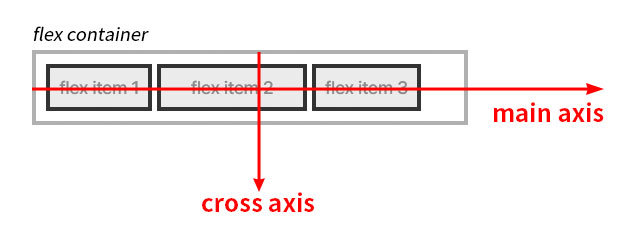
flexbox의 주축(main axis)과 교차축(cross axis)
<div class="flex-container">
    <div class="item item-1">1</div>
    <div class="item item-2">2</div>
    <div class="item item-3">3</div>
</div>
.flex-container {
    display: flex; /* 플렉스 컨테이너 생성 */
    height: 150px;
    border: 4px solid silver;
    flex-direction: row; /* 주축(main axis, 기본 축)을 결정 */
    align-items: /* value <= 라이브 데모에서 동적으로 구현 */
}
.item { /* 플렉스 아이템 */
     border: 4px solid blue;
     background-color: yellow;
}
.item-1, item-3 {
    font-size: 20px;
}
.item-2 {
    font-size: 50px;
}
/*
 * 일부 스타일 코드는 가독성을 위해 생략했습니다!
*/
CSS 데모: flexbox의 align-items 데모 버튼을 클릭해 보세요!
selector {
    align-items: flex-start | flex-end | center | baseline | stretch
}
/* 키워드 값 */
align-items: flex-start;
align-items: flex-end;
align-items: center;
align-items: baseline;
align-items: stretch; /* 초깃값 */

/* 글로벌 값 */
align-items: inherit;
align-items: initial;
align-items: revert;
align-items: revert-layer;
align-items: unset;
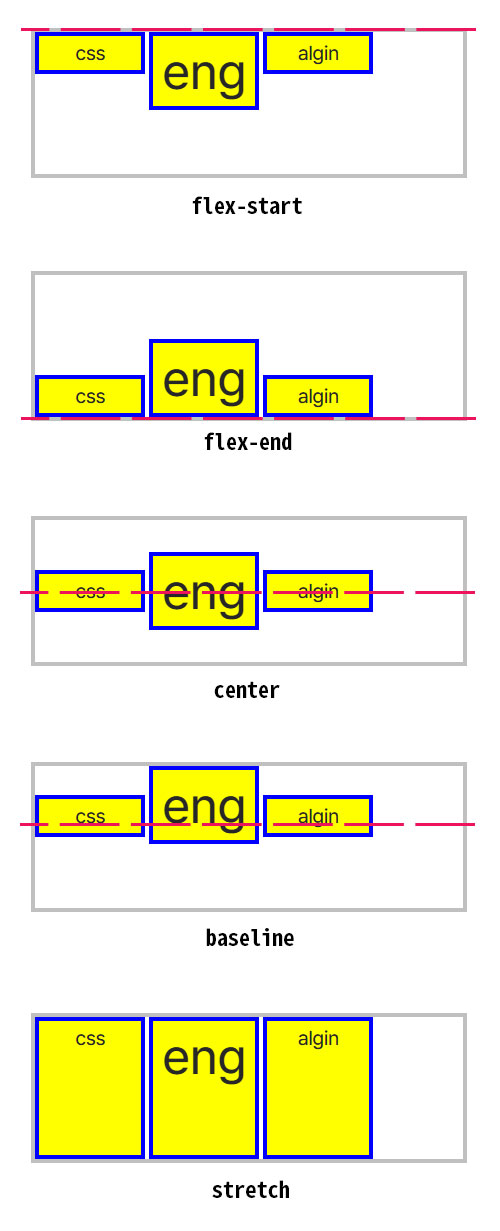
flexbox의 align-items 속성에 대한 값과 그 효과를 보여주는 그림입니다.
<div class="flex-container">
    <div class="item item-1">1</div>
    <div class="item item-2">2</div>
    <div class="item item-3">3</div>
</div>
.flex-container {
    display: flex; /* 플렉스 컨테이너 생성 */
    width: 33px;
    height: 280px;
    border: 4px solid silver;
    flex-direction: column; /* 주축(main axis, 기본 축)을 결정 */
    align-items: /* value <= 라이브 데모에서 동적으로 구현 */
}
.item { /* 플렉스 아이템 */
     border: 4px solid blue;
     background-color: yellow;
}
.item-1, item-3 {
    font-size: 20px;
}
.item-2 {
    font-size: 50px;
}
/*
 * 일부 스타일 코드는 가독성을 위해 생략했습니다!
*/
CSS 데모: flex-direction: columnalign-items 데모 버튼을 클릭해 보세요!
<header class="site-header">
    <div class="logo">
        <a href="">Your Logo</a>
    </div>
    <div class="user-actions">
        <a href="">로그인</a>
        <a href="" class="btn-signup">회원가입</a>
    </div>
</header>
.site-header {
    display: flex;
    justify-content: space-between; /* 로고와 사용자 액션 버튼을 양쪽 끝으로 배치 */
    align-items: center; /* 세로 축의 중앙에 배치하여 수직 정렬을 맞춤 */
    padding: 0 2em;
    height: 100px;
    background-color: #e3f2fd;
}
.logo a {
    font-weight: bold;
    color: #1976d2;
    text-decoration: none;
}
.user-actions a {
    margin-left: 1.5em;
    color: #666;
    text-decoration: none;
    font-size: 0.9em;
}
.user-actions .btn-signup {
    padding: 0.5em 1em;
    background-color: #1976d2;
    color: #fff;
    border-radius: 4px;
}
실제 적용된 모습
<div class="card-container">
    <section class="card">
        <h3>짧은 제목</h3>
        <p>이 카드는 콘텐츠가 적습니다.</p>
    </section>
    <section class="card">
        <h3>내용이 아주 많은 제목</h3>
        <p>이 카드는 설명이 매우 길어서 전체적인 높이를 결정하게 됩니다. 
           하지만 옆에 있는 카드도 이 카드와 동일한 높이로 자동 조절됩니다.</p>
    </section>
</div>
.card-container {
    display: flex;
    /* 기본값이 stretch이므로 생략 가능하지만, 학습을 위해 명시 */
    align-items: stretch; 
    gap: 20px; /* 플렉스 아이템 간격 설정 */
    padding: 20px;
}
.card {
    flex: 1; /* 카드 너비를 동일하게 배분 */
    padding: 20px;
    background-color: #ffffff;
    border: 1px solid #ddd;
    border-radius: 8px;
    background-color: #f9f9f0;
    box-shadow: 0 2px 4px rgba(0,0,0,0.05);
}
실제 적용된 모습